Add flat-rate shipping
To set up flat-rate shipping:
-
Choose a service level (this is the shipping service level you will ship with when this flat-rate option is selected in checkout)
-
Go to Dashboard -> Settings -> Rates.
-
Select the carrier then click the service level to which you want to add a flat rate.
-
Click Manage rates -> Create flat rate.
-
-
Set up your flat rate costs via a rule for that service level:
-
Choose if shipping costs will be based on Cart subtotal or Cart weight.
-
If using Cart subtotal, pick the currency.
-
If Cart weight is selected, choose the currency and weight units, and ensure each item in your store has a weight. Item weights can be set in your shopping cart platform or Catalog.
-
-
Set up your rates using the dropdowns greater than, less than, or between, then entering the cart price or cart weight ranges. Read below to learn how to properly enter a range to ensure your shipping option always shows when you want it to.
-
Select the countries where you want to offer this flat rate shipping service.
-
Click Save.
-
-
Be sure to test your new shipping rate.
Province/state rate overrides
You can set different flat rates for specific provinces or states within a country. This is useful when shipping costs vary significantly by region — for example, offering a lower rate to Ontario than to British Columbia, or charging more for remote provinces.
Set up province rates
-
Go to Dashboard -> Settings -> Rates.
-
Select the carrier, then click the service level you want to configure.
-
Click Rate options -> Province rates.
-
Select the Country you want to configure province rates for.
-
Choose whether rates are based on Cart subtotal or Cart weight, then set your currency and weight unit.
-
Each province is configured as its own card. Select a province from the dropdown, then set up its rate conditions using Greater than, Less than, or Between ranges.
-
Click Add rate within a province card to add multiple rate tiers for that province.
-
Click Add province to configure an additional province with its own rates.
-
Click Save. All province rates for that country are saved together.
View and manage province rates
After saving, province rates appear on the rates list grouped under their country. The country-level rate is labeled Default; province-specific rates are listed below it.
To edit province rates for a country, click Rate options -> Province rates, select the country, and the existing overrides will load automatically. Make your changes and click Save — this replaces all province rates for that country.
To remove a single province override, open Province rates for that country and click the remove button on the province card. To remove all province rates for a country, remove each card and click Save.
Proper use of ranges
Understanding how ranges function and which values they include is crucial to ensuring that we return the intended shipping rates.
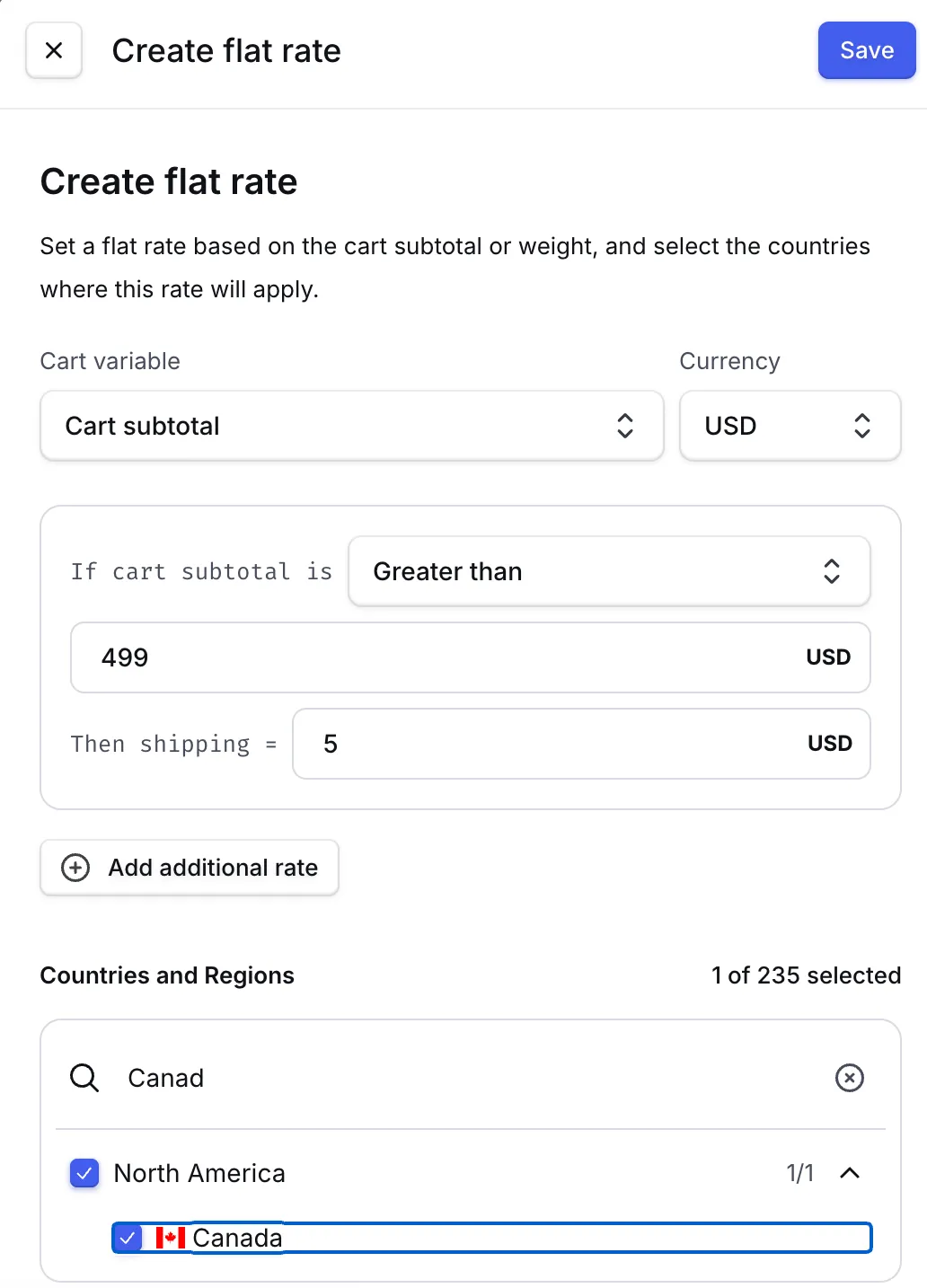
Greater than
Greater than applies to values above the entered amount (e.g., "greater than 50 USD" means 50.01 USD and up). This is not the same as "greater than or equal to".
Example
Let's say you want to offer 5 USD shipping on order subtotals of 499 USD and up. Your rule would look like this:
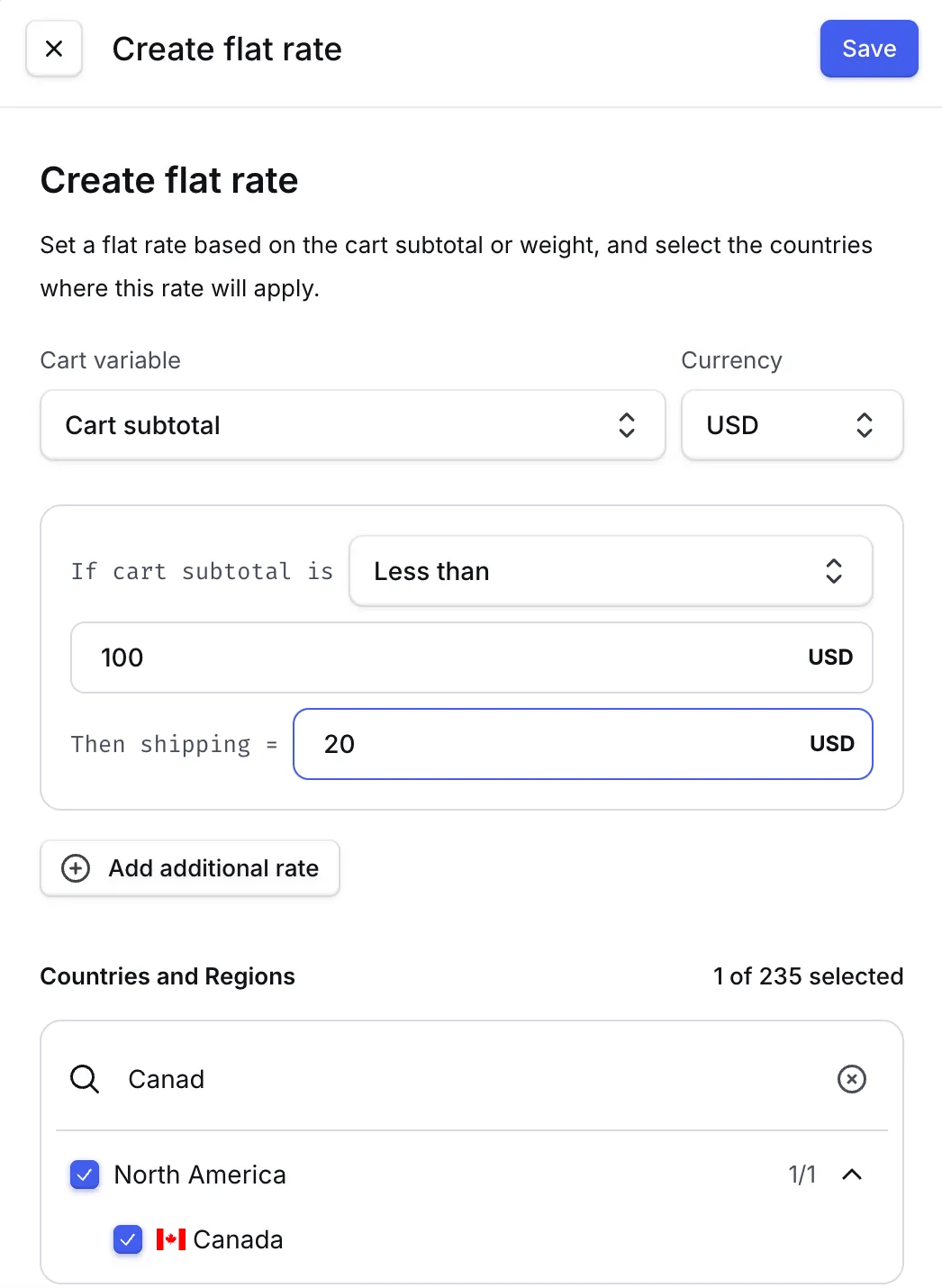
Less than
On the other hand, less than is the same as "less than or equal to." Entering “less than 50 USD” means 50 USD and less.
Example
Let's say you want to offer 20 USD shipping on order subtotals of 100 USD and less. Your rule would look like this:
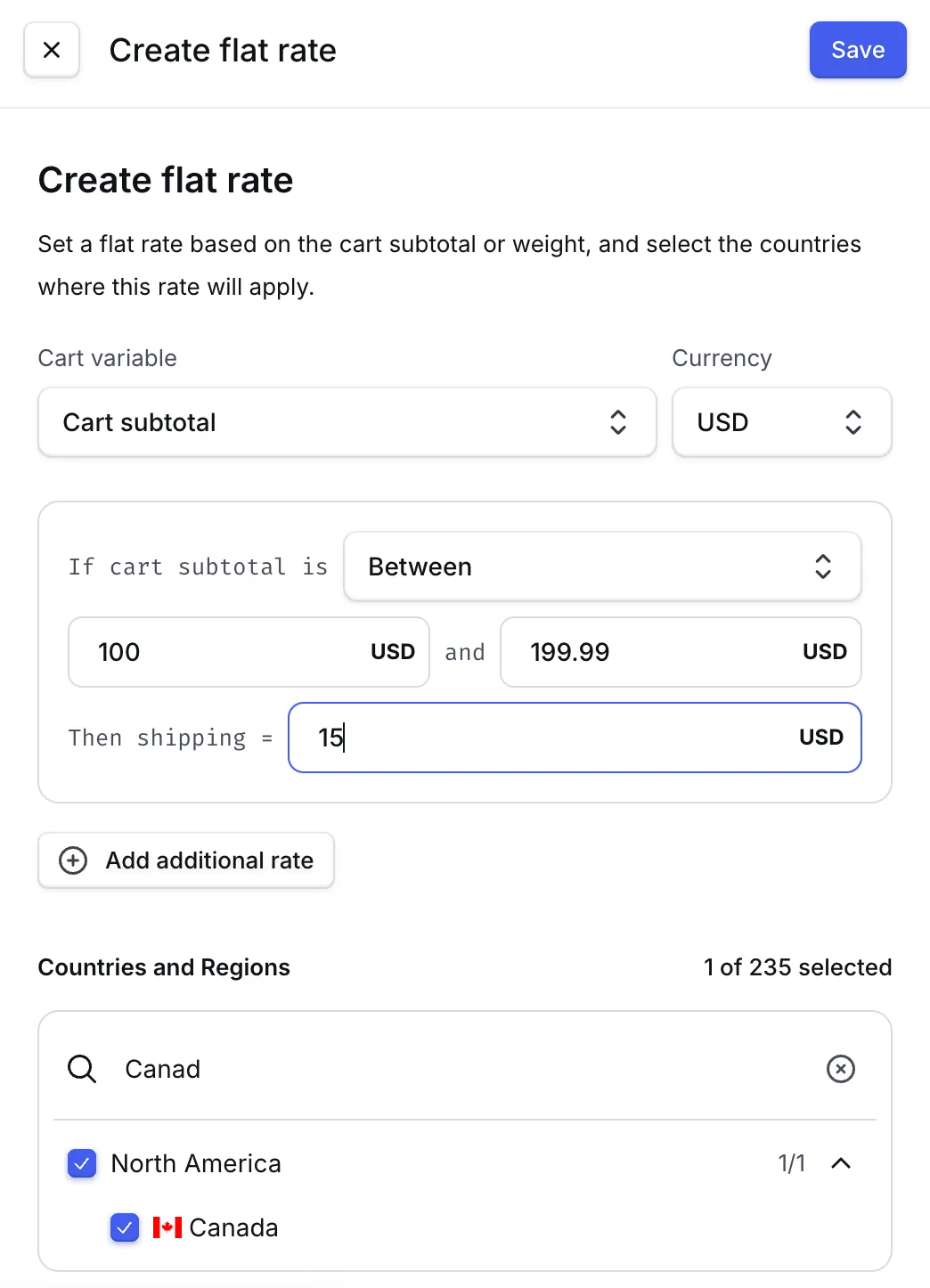
Between
Bettween applies to values within a set range, excluding the first number but including the last. Entering "between 100 USD and 199.99 USD" will apply your rate on carts from 100.01 USD to 199.99 USD.
Example
Let's say you want to offer 15 USD shipping on order subtotals from 100.01 USD to 199.99 USD. Your rule would look like this:
Flat-rate shipping
Set up a flat-rate shipping option.Flat-rate shipping options let you create custom shipping setups, like free shipping or tiered rates. They can be customized based on cart price, weight, and country.
Examples of flat-rate shipping: